Forfatter av avsnitt: Danielle J. Navarro and David R. Foxcroft
Regnearket
Det er mulig å begynne å skrive inn verdier i jamovi-regnearket på samme måte som i et hvilket som helst annet regnearkprogram. Alternativt kan du åpne eksisterende datasett i jamovi (se avsnittet «Laste inn data i jamovi» lenger ned på siden).
I jamovi er data representert i et regneark der hver kolonne representerer en «variabel» og hver rad representerer et «case» eller en «deltaker».
Datavariabler
The most commonly used variables in jamovi are Data variables, these
variables simply contain data either loaded from a data file, or “typed in” by
the user. Data variables can be one of four measurement levels
(Fig. 4). These levels are designated by the symbol in the header of
the variable’s column:
The
IDvariable type is unique to jamovi. It is intended for
variables that contain identifiers that you would almost never want to
analyse. For example, a persons name, or a participant ID. Specifying an ID
variable type can improve performance when interacting with very large data
sets.
is unique to jamovi. It is intended for
variables that contain identifiers that you would almost never want to
analyse. For example, a persons name, or a participant ID. Specifying an ID
variable type can improve performance when interacting with very large data
sets.Nominalvariables are for categorical variables which are text
labels, for example a column called
are for categorical variables which are text
labels, for example a column called genderwith the valuesmaleandfemalewould be nominal. So would a person’s name. Nominal variable values can also have a numeric value. These variables are used most often when importing data which codes values with numbers rather than text. For example, a column in a data set may contain the values 1 formale, and 2 forfemale. It is possible to add nice “human-readable” labels to these values with the variable editor (more on this later).Ordinal-variabler er som
 Nominal-variabler, bortsett fra at verdiene har en bestemt rekkefølge. Et eksempel er en Likert-skala der 3 er «helt enig» og -3 er «helt uenig».Continuous-variabler er variabler som eksisterer på en kontinuerlig skala. Eksempler kan være høyde eller vekt. Dette kalles også «intervallskala» eller «forholdstallskala».
In addition, you can also specify different data types: variables have a data
type of either Text, Integer or Decimal. They determine how these
data are stored. Typically, it is neither required nor recommended to change
the data type.
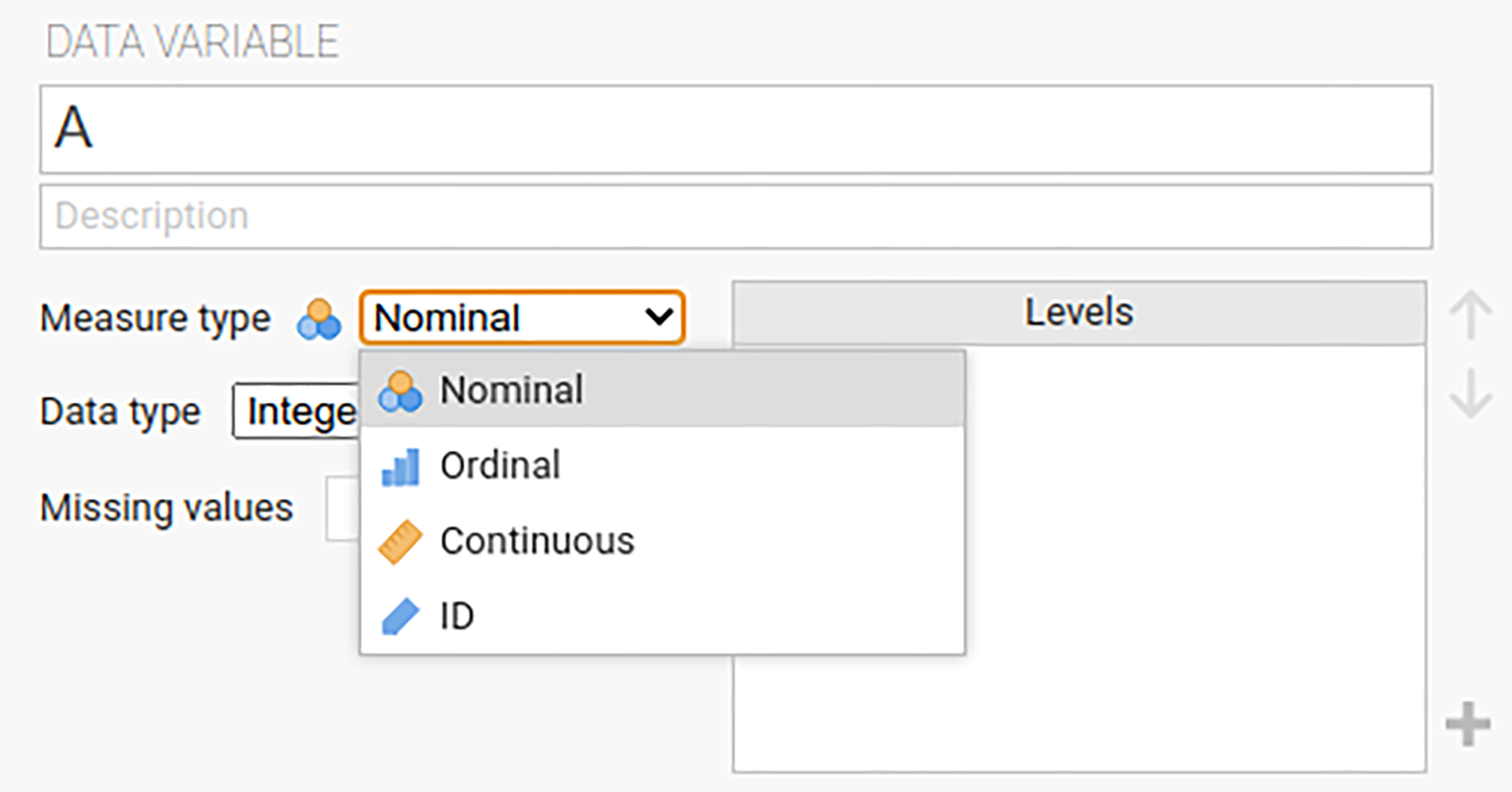
Fig. 4 Vindu for innstilling av målenivåer og datatyper i jamovi.
Når du starter med et tomt regneark og skriver inn verdier, endres variabeltypen automatisk avhengig av dataene du skriver inn. Dette er en god måte å få en følelse av hvilke variabeltyper som passer til hvilke typer data. På samme måte vil jamovi prøve å gjette variabeltypen ut fra dataene i hver kolonne når du åpner en datafil. I begge tilfeller er det ikke sikkert at denne automatiske tilnærmingen er korrekt, og det kan være nødvendig å angi variabeltypen manuelt med variabeleditoren.
Variabelredigeringsprogrammet kan åpnes ved å velge Setup fra Data-båndet eller ved å dobbeltklikke på kolonneoverskriften for variabelen. I variabelredigeringsprogrammet kan du endre navnet på variabelen og, for datavariabler, måleenhetstypen, rekkefølgen på verdinivåene og etiketten som vises for hvert nivå. Variabelredigereren kan avvises ved å klikke på ↑.
Nye variabler kan legges inn eller legges til i datasettet ved hjelp av knappen Add i fanen Data. Knappen Add gjør det også mulig å legge til beregnede variabler.
Changing data from one level to another
Sometimes you want to change the variable level. This can happen for all sorts
of reasons. Sometimes when you import data from files, it can come to you in
the wrong format. Numbers sometimes get imported as nominal , text
values. Dates may get imported as text. Participant-ID values can
sometimes be read as continuous : nominal values can
sometimes be read as ordinal or even continuous . There is
a good chance that sometimes you will want to convert a variable from one
measurement level into another one. Or, to use the correct term, you want to
coerce the variable from one class into another.
Hvis du vil endre målenivået for en variabel, kan du gjøre dette i jamovi Data-visningen. Klikk på variabelnavnet i øverste rad i datatabellen, og velg deretter ønsket målenivå under Measure Type - continuous , ordinal eller nominal .
Computed Variables
Computed variables are those which take their value by performing a computation on other variables. Computed variables can be used for a range of purposes, including log transforms, z-scores, sum-scores, negative scoring and means.
Beregnede variabler kan legges til i datasettet ved hjelp av knappen Add``i ``Data-fanen. Da får du opp en formelboks der du kan angi formelen. De vanlige aritmetiske operatorene er tilgjengelige. Noen eksempler på formler er:
A + B
LOG10(len)
MEAN(A, B)
(dose - VMEAN(dose)) / VSTDEV(dose)
In order, these are the sum of A and B, a log (base 10) transform of
len, the mean of A and B, and the z-score of the variable
dose. Fig. 5 shows the jamovi screen for the new variable
computed as the z-score of dose (from the Tooth Growth example data
set). How to create and use computed variables is
elaborated later.
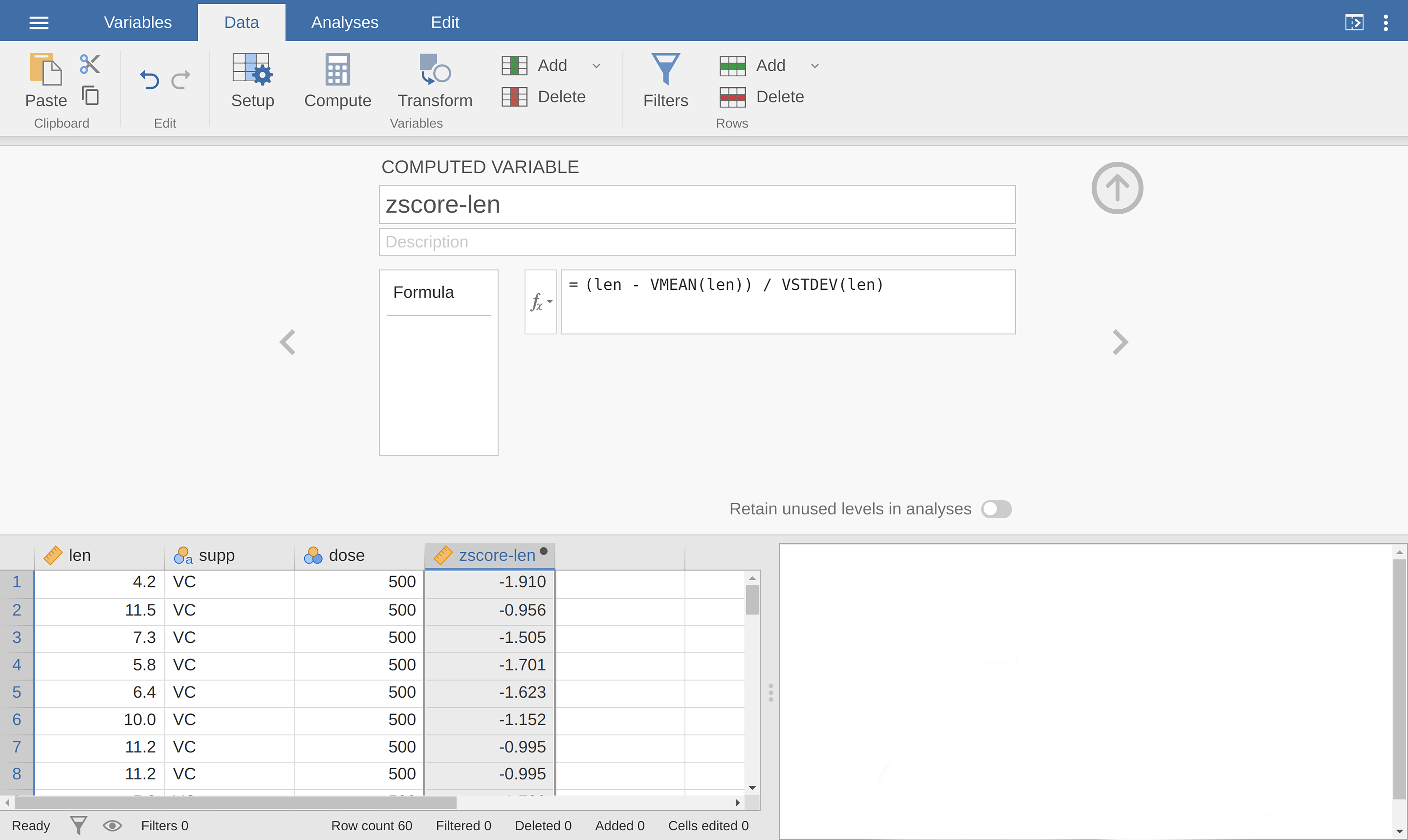
Fig. 5 En ny beregnet variabel, z-verdi for dose.
V-funksjoner
Several functions are already available in jamovi and available from the
drop-down box labelled fx. A number of functions appear in pairs,
one prefixed with a V and the other not. V functions perform their calculation
on a variable as a whole, where as non-V functions perform their calculation
row by row. For example, MEAN(A, B) will produce the mean of A and
B for each row. Where as VMEAN(A) gives the mean of all the values in
A.
Transformed Variables
The transformation that is used when creating this type of variable, relies on a “receipe” that is created once and can then be applied to multiple variables. This section describes in more detail how to generate such a “receipe”. Transformed variables are often used to “recode” variables (e.g., when inverting items), a typical transformation which described in more detail at the end of the subsection EFA i jamovi and in Fig. 202. When transforming or recoding variables in jamovi, a new “transformed variable” is created from an original “source variable”. This permits you to have access to both the original, untransformed data, and the transformed data.
After having created a transformation, you can apply this transformation using the transform editor. It lets you define the name and the description of the transformed variable to be created, which source variable should be used and which transformation should be applied (all transformations that already were defined are available from a drop-down menu in the editor).