Auteur de la section : Danielle J. Navarro and David R. Foxcroft
Loading data in jamovi
There are several different types of files that are likely to be relevant to us when doing data analysis. There are two in particular that are especially important from the perspective of this book:
jamovi files are those with a
.omvfile extension. This is the standard kind of file that jamovi uses to store data, and variables and analyses.Comma separated value (CSV) files are those with a
.csvfile extension. These are just regular old text files and they can be opened with many different software programs. It is quite typical for people to store data in CSV files, precisely because they are so simple.
There are also several other kinds of data file that you might want to
import into jamovi. For instance, you might want to open Microsoft Excel
spreadsheets (.xlsx files), or data files that have been saved in the
native file formats for other statistics software, such as SPSS or SAS.
Whichever file formats you are using, it is a good idea to create a folder or folders especially for your jamovi data sets and analyses and to make sure you keep these backed up regularly.
To open a file select the jamovi file menu (☰; top left-hand corner),
select Open and then choose from the files listed under This PC if you
want to open an file stored on your computer or select an example data set by
choosing Data Library. The example files in this book can be found within
the Data Library → learning statistics with jamovi (or lsj-data).
Importing data from CSV files
One quite commonly used data format is the humble “comma separated value” file,
also called a CSV file, and usually bearing the file extension .csv. CSV
files are just plain old-fashioned text files and what they store is basically
just a table of data. This is illustrated in Fig. 6, which shows a
file called booksales.csv that I have created. As you can see, each row
represents the book sales data for one month. The first row does not contain
actual data though, it has the names of the variables.
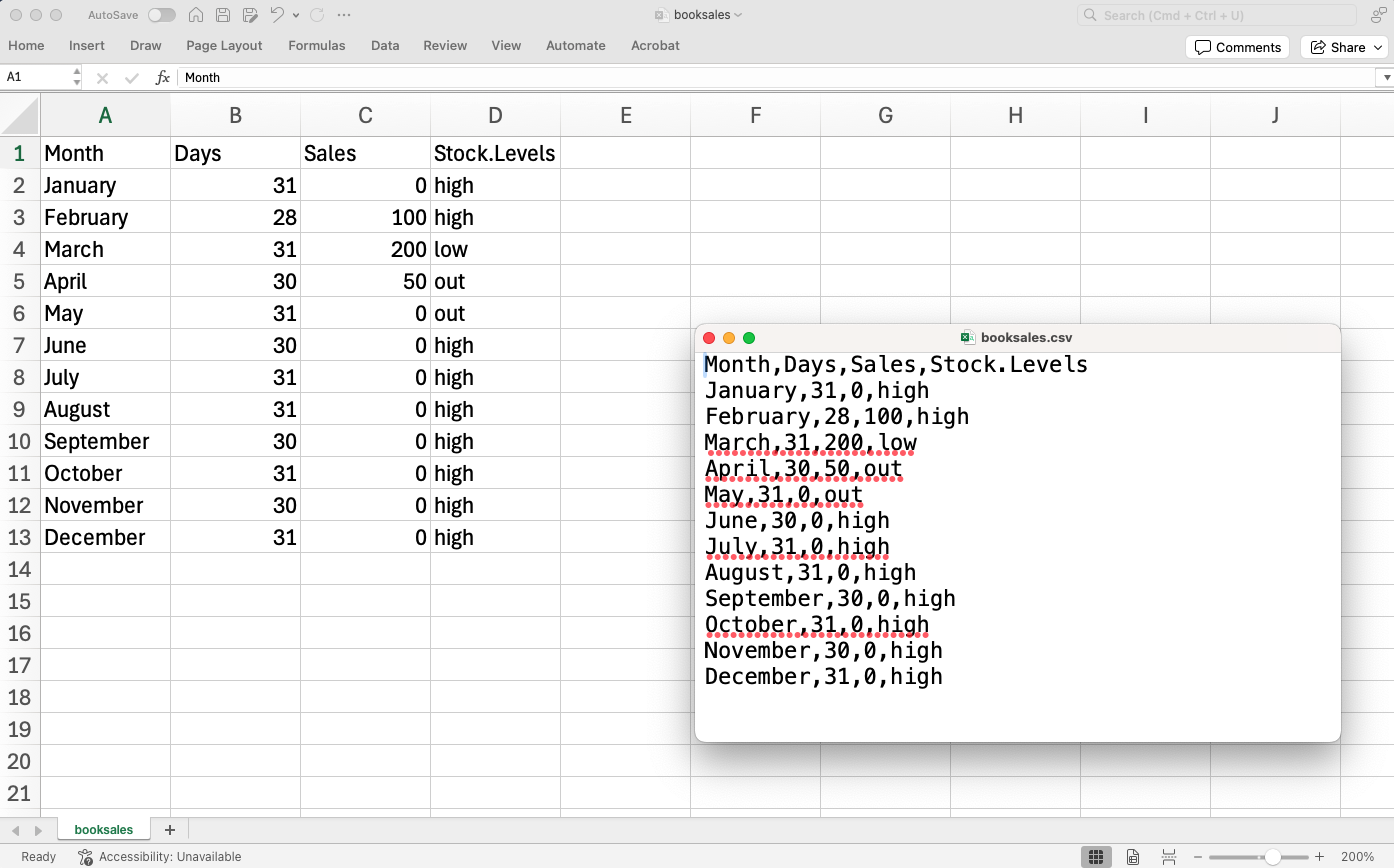
Fig. 6 The booksales.csv data file. On the left I have opened the file using a
spreadsheet, which shows that the file is basically a table. On the right,
the same file is open in a text editor, which shows how the file is
formatted. The entries in the table are wrapped in quote marks and separated
by commas.
It is easy to open CSV files in jamovi. From the jamovi main menu (☰; top
left-hand corner) choose Open and browse to where you have stored the CSV
file on your computer. If you are on a Mac, it will look like the usual Finder
window that you use to choose a file; on Windows it looks like an Explorer
window. I am assuming that you are familiar with your own computer, so you
should have no problem finding the CSV-file that you want to import! Find the
one you want, then click on the Open button. An example of what it looks
like on a Mac is shown in Fig. 7. I am assuming that you should have
no problem finding the csv file that you want to import!
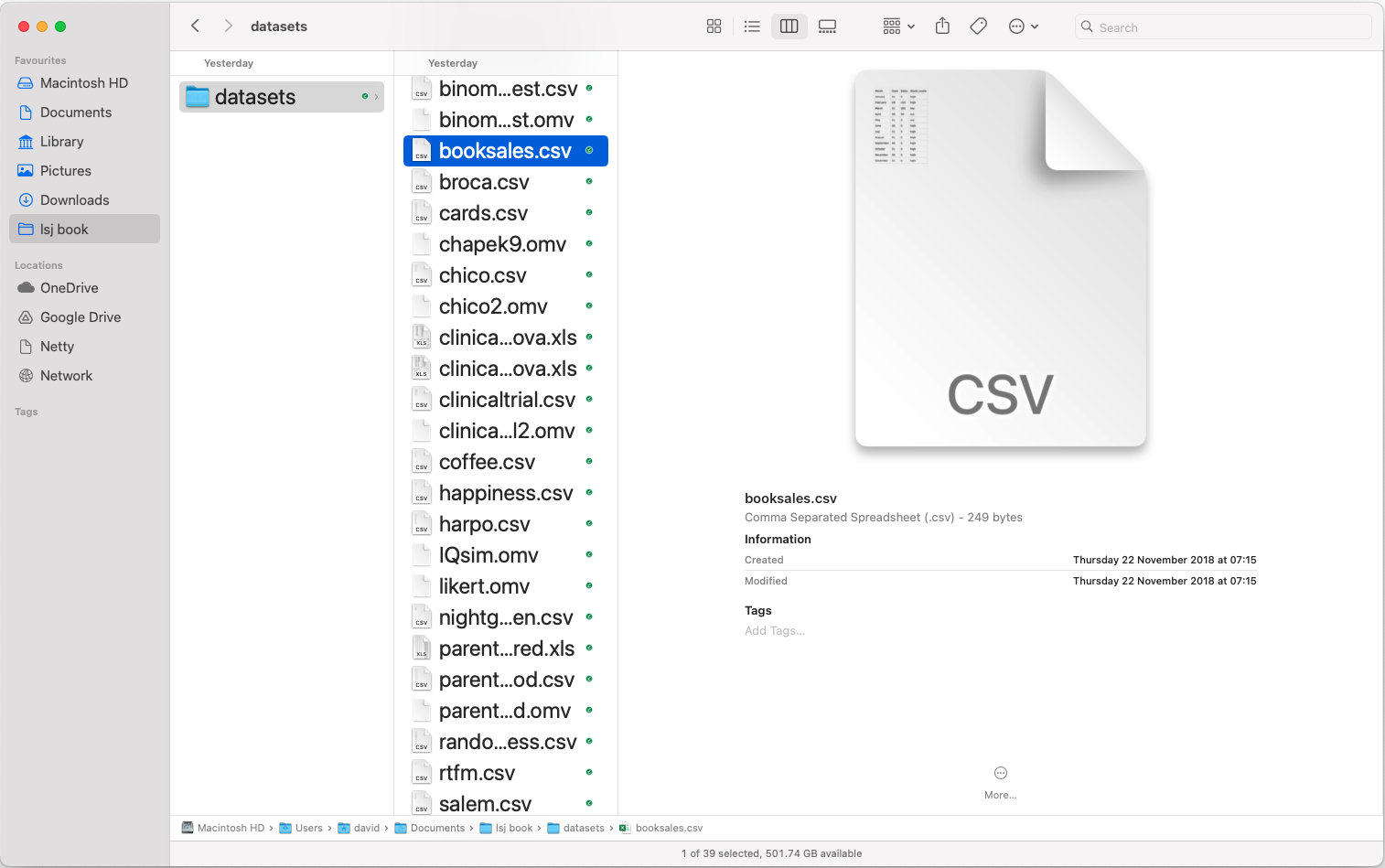
Fig. 7 A dialog box on a Mac asking you to select the CSV file jamovi should try to import. Mac users will recognise this immediately, as it is the usual way in which a Mac asks you to find a file. Windows users will not see this, instead they will see the usual explorer window that Windows always gives you when it wants you to select a file.
There are a few things that you can check to make sure that the data gets imported correctly:
Heading: Does the first row of the file contain the names for each variable – a “header” row? The
booksales.csvfile has a header, so that is a yes.Separator: What character is used to separate different entries? In most CSV files this will be a comma (it is “comma separated” after all).
Decimal: What character is used to specify the decimal point? In English speaking countries this is almost always a period (i.e.,
.). That is not universally true though, many European countries use a comma.Quote: What character is used to denote a block of text? That is usually going to be a double quote mark (
"). It is for thebooksales.csvfile.
Throughout this book I have assumed that your data are stored as a jamovi
.omv file or as a “properly” formatted CSV file. However, in real
life that is not a terribly plausible assumption to make so I would better
talk about some of the other possibilities that you might run into.
The first thing I should point out is that if your data are saved as a text file but are not quite in the proper CSV format then there is still a pretty good chance that jamovi will be able to open it. You just need to try it and see if it works. Sometimes though you will need to change some of the formatting. The ones that I have often found myself needing to change are:
header: A lot of the time when you are storing data as a CSV file the first row actually contains the column names and not data. If that is not true then it is a good idea to open up the CSV file in a spreadsheet programme such as LibreOffice and add the header row manually.sep: As the name “comma separated value” indicates, the values in a row of a CSV file are usually separated by commas. This is not universal, however. In Europe the decimal point is typically written as,instead of.and as a consequence it would be somewhat awkward to use,as the separator. Therefore it is not unusual to use;instead of,as the separator. At other times, I have seen a TAB character used.quote: It is conventional in CSV files to include a quoting character for textual data. As you can see by looking at thebooksales.csvfile, this is usually a double quote character,". But sometimes there is no quoting character at all, or you might see a single quote mark'used instead.skip: It is actually very common to receive CSV files in which the first few rows have nothing to do with the actual data. Instead, they provide a human readable summary of where the data came from, or maybe they include some technical info that does not relate to the data.missing values: Often you will get given data with missing values. For one reason or another, some entries in the table are missing. The data file needs to include a “special” value to indicate that the entry is missing. By default jamovi assumes that this value isNA,[1] for both numeric and text data, so you should make sure that, where necessary, all missing values in the CSV file are replaced with99(or-9999; whichever you choose) before opening / importing the file into jamovi. Once you have opened / imported the file into jamovi all the missing values are converted to blank or greyed out cells in the jamovi spreadsheet view. You can also change the missing value for each variable as an option in theData→Setupview.
Importing data from other statistics packages
The commands listed above are the main ones we will need for data files in
this book. But in real life we have many more possibilities. For
example, you might want to read data files in from other statistics
programs. Since SPSS is probably the most widely used statistics package
in psychology, it is worth mentioning that jamovi can also import SPSS
data files (file extension .sav). Just follow the instructions above
for how to open a CSV file, but this time navigate to the .sav file
you want to import.
As far as other statistical software goes, jamovi can also directly open / import a wealth of other formats such as R, SAS, Stata, Excel, LibreOffice, and JSON.