Autor des Abschnitts: Danielle J. Navarro and David R. Foxcroft
Die Datentabelle
Es ist möglich, einfach damit zu beginnen, Werte in die jamovi-Datentabelle einzugeben, wie Sie es in jeder anderen Tabellenkalkulationssoftware tun würden. Alternativ können bestehende Datendateien in jamovi geöffnet werden (siehe Abschnitt „Datendateien in jamovi öffnen“ weiter unten).
In jamovi werden die Daten in einer Tabelle dargestellt, wobei jede Spalte für eine „Variable“ und jede Zeile für einen „Fall“ oder „Teilnehmer“ steht.
Datenvariablen
The most commonly used variables in jamovi are Data variables, these
variables simply contain data either loaded from a data file, or “typed in” by
the user. Data variables can be one of four measurement levels
(Abb. 4). These levels are designated by the symbol in the header of
the variable’s column:
The
IDvariable type is unique to jamovi. It is intended for
variables that contain identifiers that you would almost never want to
analyse. For example, a persons name, or a participant ID. Specifying an ID
variable type can improve performance when interacting with very large data
sets.
is unique to jamovi. It is intended for
variables that contain identifiers that you would almost never want to
analyse. For example, a persons name, or a participant ID. Specifying an ID
variable type can improve performance when interacting with very large data
sets.Nominalvariables are for categorical variables which are text
labels, for example a column called
are for categorical variables which are text
labels, for example a column called genderwith the valuesmaleandfemalewould be nominal. So would a person’s name. Nominal variable values can also have a numeric value. These variables are used most often when importing data which codes values with numbers rather than text. For example, a column in a data set may contain the values 1 formale, and 2 forfemale. It is possible to add nice “human-readable” labels to these values with the variable editor (more on this later).Ordinal-Variablen sind wie
 Nominal-Variablen, nur dass die Werte eine bestimmte Reihenfolge haben. Ein Beispiel ist eine Likert-Skala, bei der 3 für „stimme voll zu“ und -3 für „stimme überhaupt nicht zu“ steht.Continuous-Variablen sind Variablen, die auf einer kontinuierlichen Skala existieren. Beispiele hierfür sind Größe oder Gewicht. Man spricht auch von „Intervallskala“ oder „Verhältnisskala“.
In addition, you can also specify different data types: variables have a data
type of either Text, Integer or Decimal. They determine how these
data are stored. Typically, it is neither required nor recommended to change
the data type.
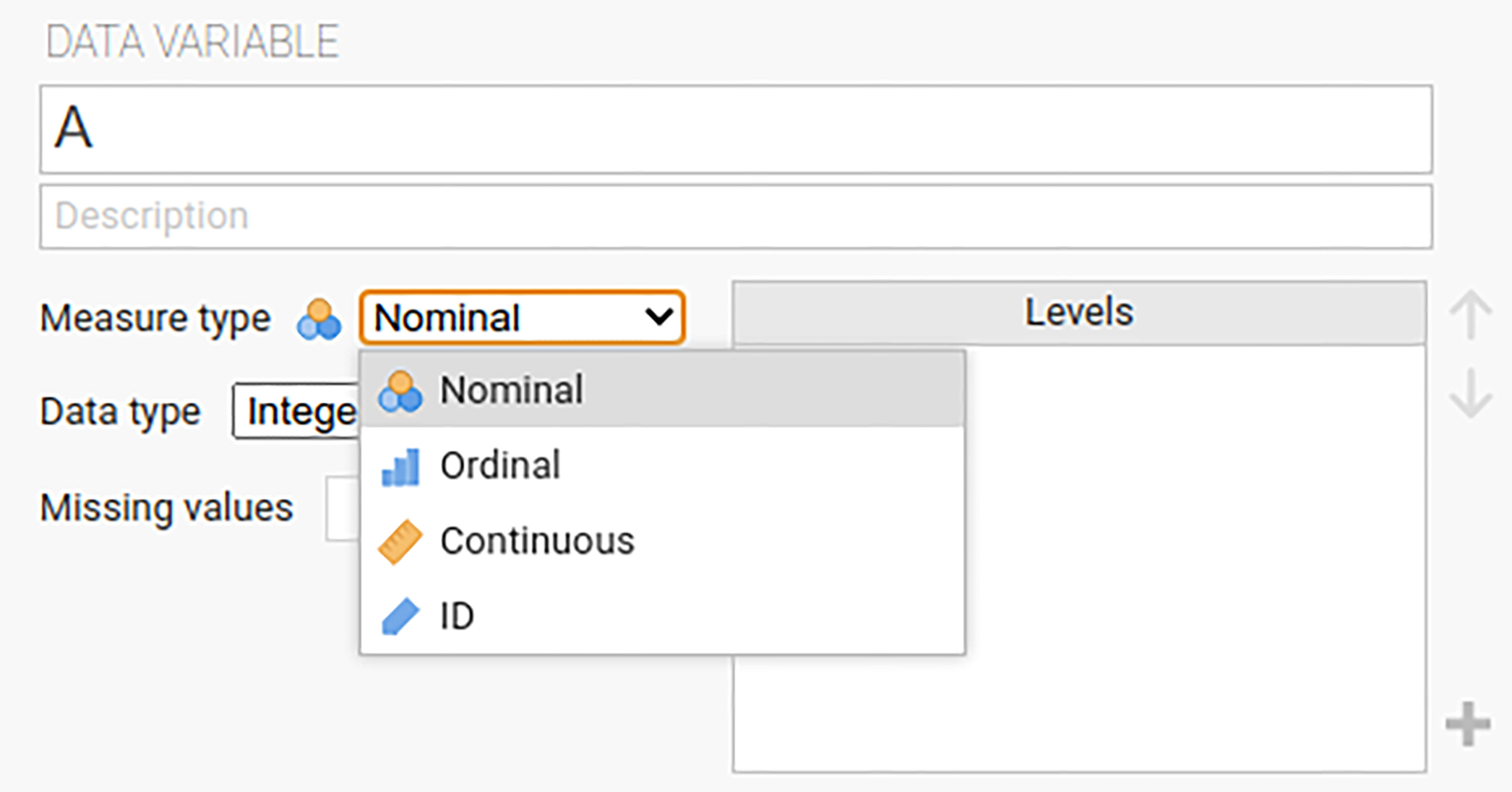
Abb. 4 Fenster, um Skalenniveau und Datentype in jamovi einzustellen.
Wenn Sie mit einem leeren Tabellenblatt beginnen und Werte eingeben, ändert sich der Variablentyp automatisch, abhängig von den Daten, die Sie eingeben. Dies ist eine gute Möglichkeit, ein Gefühl dafür zu bekommen, welche Variablentypen zu welcher Datenart passen. Ebenso versucht jamovi beim Öffnen eines Datensatzes, den Variablentyp, anhand der Daten in jeder Spalte, zu erkennen. In beiden Fällen kann es sein, dass diese automatische Erkennung von jamovi nicht korrekt ist. In einem solchen Fall kann man den Variablentyp manuell mit dem Variablen-Editor festlegen.
Der Variablen-Editor kann durch Auswahl von Setup aus dem Data-Menüband oder durch Doppelklick auf die Spaltenüberschrift der jeweiligen Variable geöffnet werden. Im Variablen-Editor können Sie den Namen der Variablen und bei Datenvariablen den Datentyp, Skalenniveau und die für jede Stufe der Variablen angezeigte Bezeichnung ändern. Der Variablen-Editor kann durch Klicken auf ↑ verlassen werden.
Neue Variablen können über die Schaltfläche Add im Data-Tab in den Datensatz eingefügt oder angehängt werden. Die Schaltfläche Add ermöglicht auch das Hinzufügen von berechneten Variablen.
Changing data from one level to another
Sometimes you want to change the variable level. This can happen for all sorts
of reasons. Sometimes when you import data from files, it can come to you in
the wrong format. Numbers sometimes get imported as nominal , text
values. Dates may get imported as text. Participant-ID values can
sometimes be read as continuous : nominal values can
sometimes be read as ordinal or even continuous . There is
a good chance that sometimes you will want to convert a variable from one
measurement level into another one. Or, to use the correct term, you want to
coerce the variable from one class into another.
Wenn Sie das Skalenniveau einer Variablen ändern möchten, können Sie dies in der jamovi-Datenansicht für diese Variable tun. Klicken Sie auf den Variablennamen in der obersten Zeile der Datentabelle und wählen Sie dann einfach auf das für die gewünschte Niveau unter Measure Type – continuous , ordinal oder nominal .
Computed Variables
Computed variables are those which take their value by performing a computation on other variables. Computed variables can be used for a range of purposes, including log transforms, z-scores, sum-scores, negative scoring and means.
Die berechneten Variablen können dem Datensatz über die Schaltfläche Add auf der Registerkarte Data hinzugefügt werden. Daraufhin wird ein Formelfenster angezeigt, in dem Sie die gewünschte Formel eingeben können. Es stehen die üblichen arithmetischen Operatoren zur Verfügung. Einige Beispiele für Formeln sind:
A + B
LOG10(len)
MEAN(A, B)
(dose - VMEAN(dose)) / VSTDEV(dose)
In order, these are the sum of A and B, a log (base 10) transform of
len, the mean of A and B, and the z-score of the variable
dose. Abb. 5 shows the jamovi screen for the new variable
computed as the z-score of dose (from the Tooth Growth example data
set). How to create and use computed variables is
elaborated later.
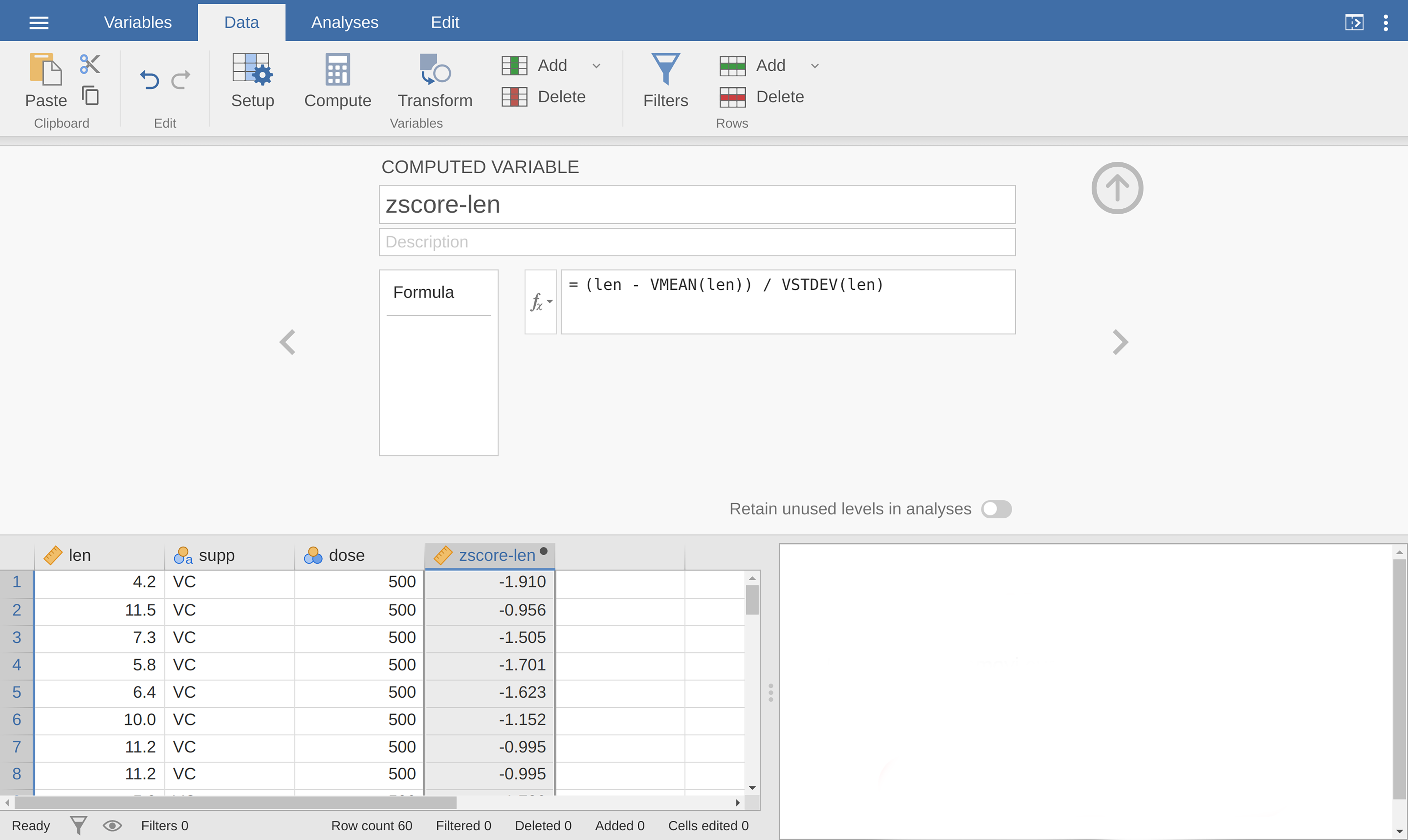
Abb. 5 Eine neu berechnete Variable, der z-Wert von dose.
V-Funktionen
Several functions are already available in jamovi and available from the
drop-down box labelled fx. A number of functions appear in pairs,
one prefixed with a V and the other not. V functions perform their calculation
on a variable as a whole, where as non-V functions perform their calculation
row by row. For example, MEAN(A, B) will produce the mean of A and
B for each row. Where as VMEAN(A) gives the mean of all the values in
A.
Transformed Variables
The transformation that is used when creating this type of variable, relies on a “receipe” that is created once and can then be applied to multiple variables. This section describes in more detail how to generate such a “receipe”. Transformed variables are often used to “recode” variables (e.g., when inverting items), a typical transformation which described in more detail at the end of the subsection EFA in jamovi and in Abb. 202. When transforming or recoding variables in jamovi, a new “transformed variable” is created from an original “source variable”. This permits you to have access to both the original, untransformed data, and the transformed data.
After having created a transformation, you can apply this transformation using the transform editor. It lets you define the name and the description of the transformed variable to be created, which source variable should be used and which transformation should be applied (all transformations that already were defined are available from a drop-down menu in the editor).