Autore della sezione: Danielle J. Navarro and Sebastian Jentschke
Sorting, rearranging, merging, transposing data
In this section I discuss a few useful transformations that are loosely related to one another: sorting a data set (after one or more variables), rearraning the order of variables in a data set, combining several data sets into one (using an index variable), transposing a data set (i.e., make rows into columns, and columns into rows), and reshaping a data set (from long to wide format or from wide to long format).
For all of these transformations, you need to install the jamovi module
jTransform (cf. Installing modules). Once this is done,
most of these transformations are fairly straightforward tasks, at least in
comparison to some of the more obnoxious data handling problems that turn up
in real life.
Sorting a data set
The function Sort permits you to sort your data set after one (or several)
variables (Fig. 45). When using the nightgarden data set, sorting
after the variables speaker, utterance, and ID, the data are first
sorted by speaker. Any ties (i.e., data from the same speaker) are then
sorted after utterance, and then finally after ID. For any of these
variables, you can determine whether they should be sorted in ascending or
descending order. Ascending means that smaller numbers or words starting with
letters that come first in the alphabet appear in the first rows, descending
would put higher numbers and words starting with letters that come last in the
alphabet in the first rows.
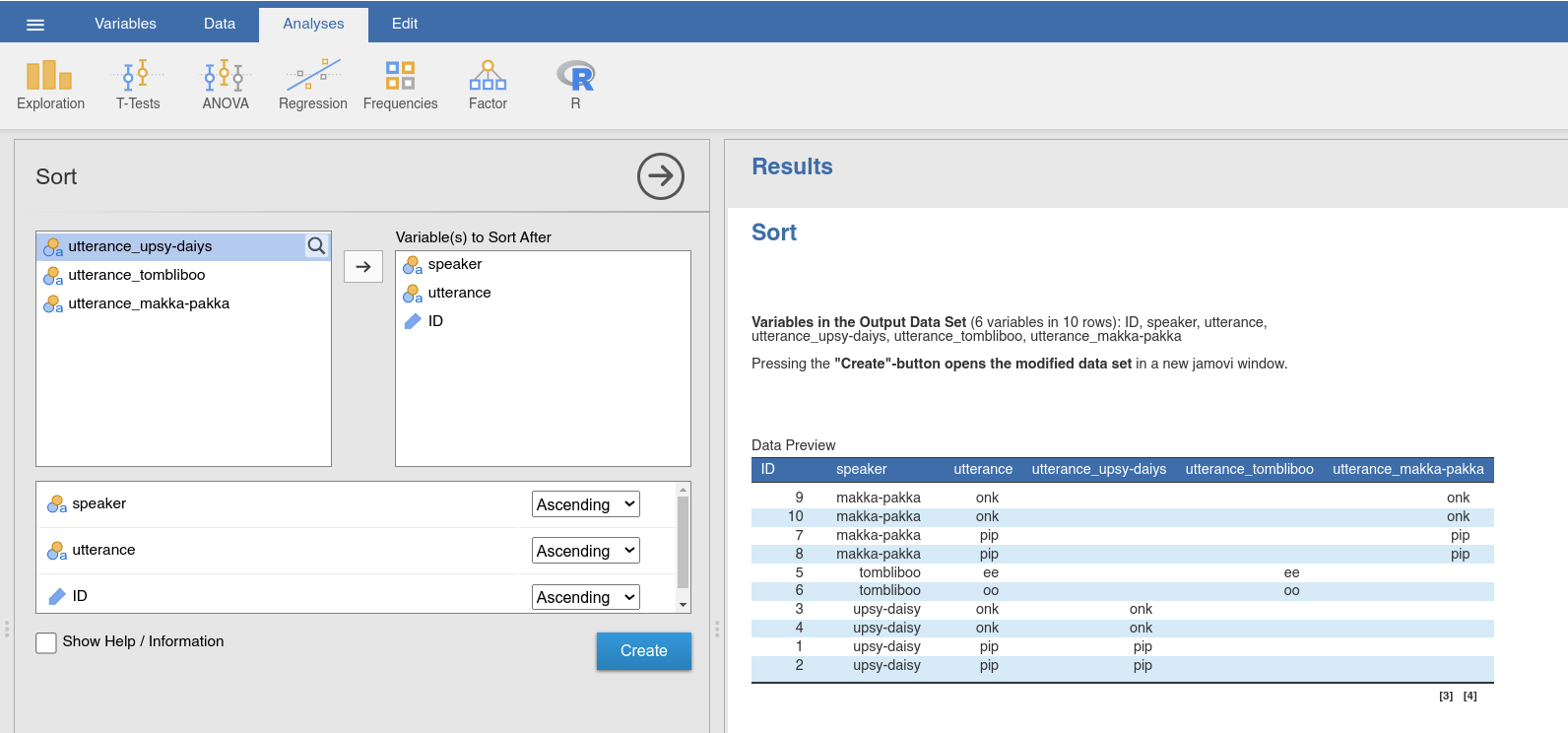
Fig. 45 Option and results panels for the Sort-function from jTransform
using the nightgarden data set
Looking at the Data Preview in the results panel, you can decide whether
you are happy with the sorting order, and the Create-button opens the
sorted data set in a new jamovi window.
Rearranging the order of variables in a data set
Sometimes, you would like to rearrange the variables in your data set in a
certain order (e.g., because you added variables as the last columns and would
like to move the further forward in the data set). For this demonstration, we
will use the parenthood data set (used and described <parenthood_summary>
later in the book). The dependent variable (dani.grump) of this data set is
placed in the middle of this data set (between the independent variables). We
would like to arrange the variables in a way that dani.grump becomes the
last variable in the data set, using the function Change Variable Order. In
the analysis panel (Fig. 46), we arrange the variables in the desired
order, briefly check the Data Preview, and then use the Create-button
to open the data set with the new order of variables in a new jamovi window.
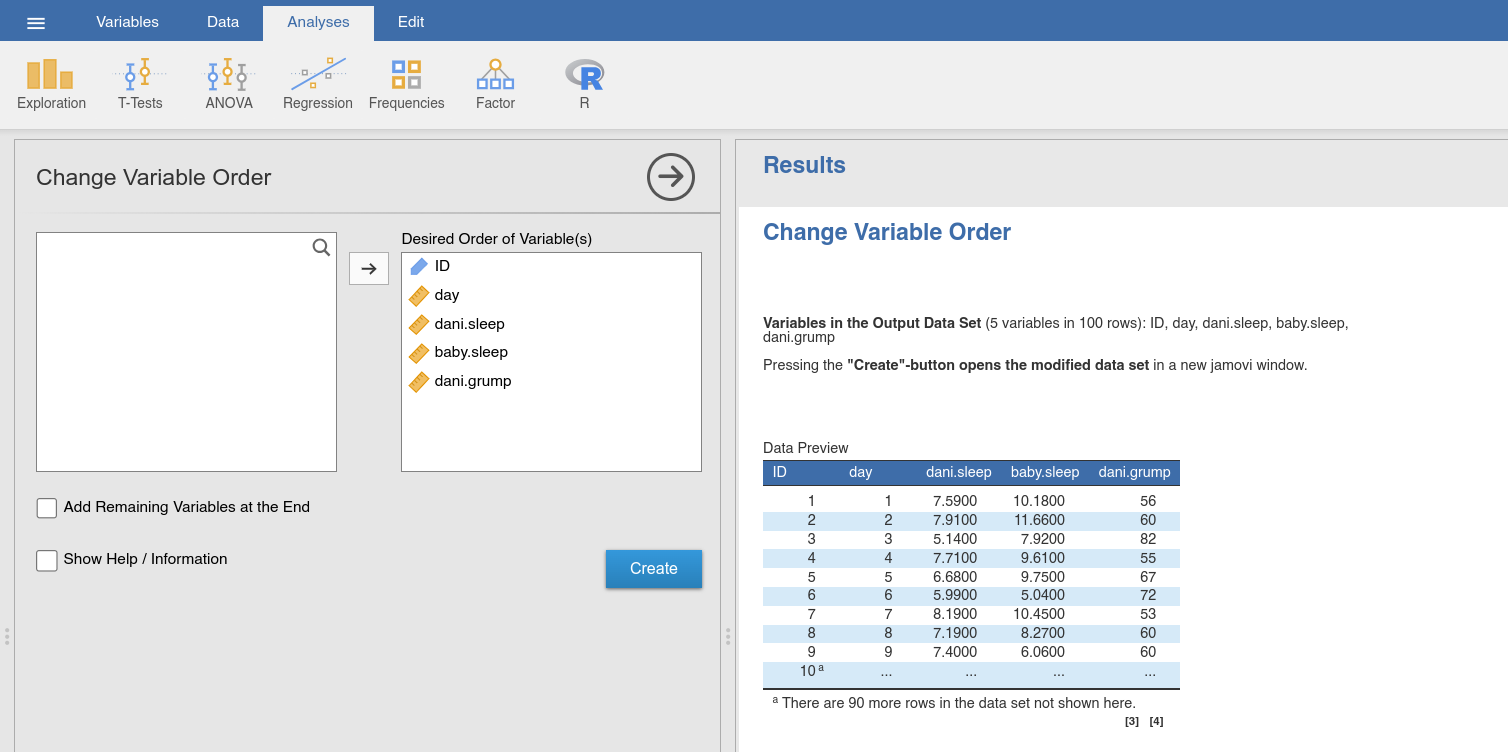
Fig. 46 Option and results panels for the Change Variable Order-function from
jTransform using the parenthood data set
Transposing a data set
Quite often, data from individual participants come from log files where they are arranged in rows (e.g., a participant’s answers to each question in a questionnaire). As a first step of assembling a data set, you could copy-and-paste those data into a new data set (i.e., one column per participant). However, for analyses, you need those data to be arranged as having participants in rows and the different variables in columns. The operation that you need here is to “flip” or transpose the data set. Fig. 47 provides an example for how such a data set may look like.
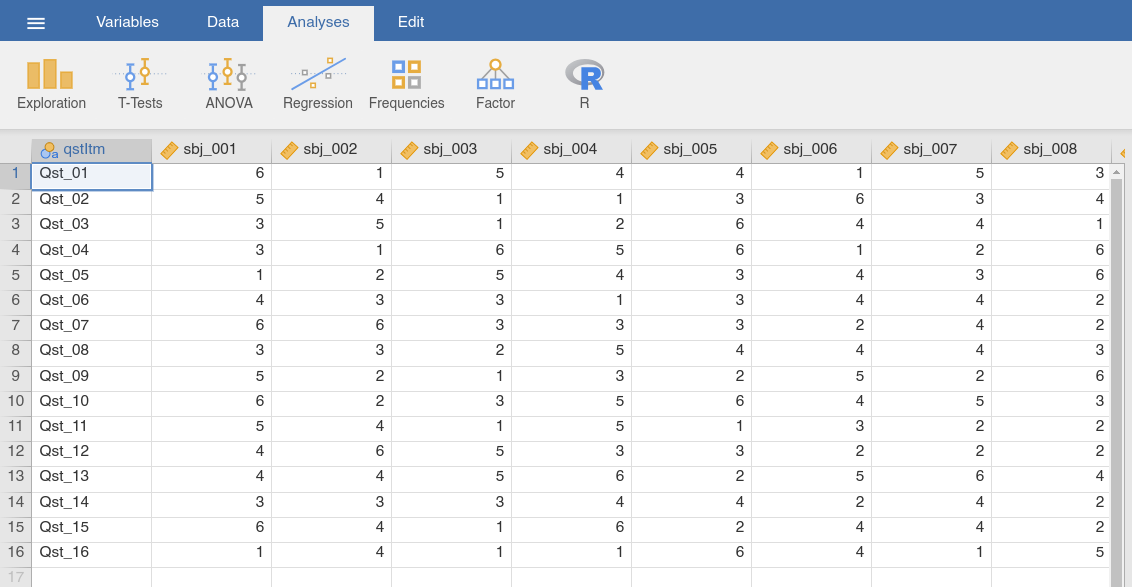
Fig. 47 Data table of a data set that needs to be transposed (participants in
columns, variables in rows), the transpose data set
We will use the transpose data set for this demonstration. It contains data
from a (fictional) study with questionnaire responses Qst_… in rows and
participants as columns (each of these columns was supposedly copied from the
log file of that participant). To transpose this data set, we use the function
Transpose from jTransform. In the analysis panel (Fig. 48),
we assign the variables to Variables to be transposed. In some cases (like
in the current data set) we have an additional variable that contains the
desired names for the variables after the transposition. If we have such a
variable (containing, e.g., the names of the questionnaire items), we assign it
to Variable Names for the Output. After we have assigned the variables, we
briefly check the Data Preview, and then use the Create-button to open
the transposed data set in a new jamovi window.
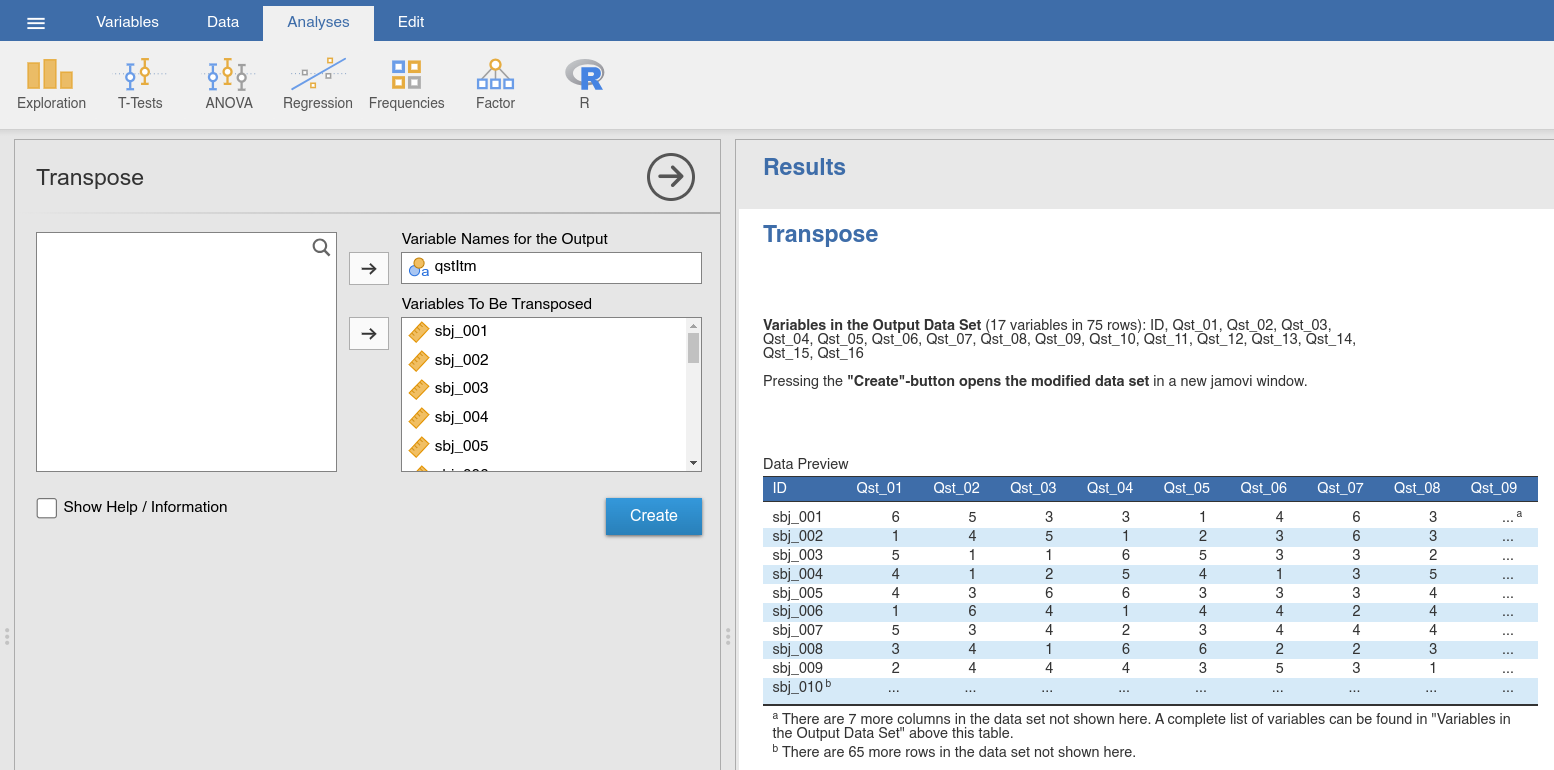
Fig. 48 Option and results panels for the Transpose-function from jTransform
using the transpose data set
An important point to recognise is that transposing a data frame is not always a sensible thing to do: in fact, I would go so far as to argue that it is usually not sensible. It depends a lot on whether the “cases” from your original data frame would make sense as variables, and to think of each of your original “variables” as cases. However, there are some situations where it is useful to transpose your data frame. A lot of statistical tools assume that the rows of your data set correspond to observations, and the columns correspond to the variables. However, in cases where you observations (rows) are, e.g., different time points, you might want to do an analysis where you think of the times as being the things of interest (i.e., times as variables, certain measures as cases). If so, then it is useful to know how to transpose a data set.