Tác giả mục:Danielle J. Navarro and David R. Foxcroft
Tabulating and cross-tabulating data
A very common task when analysing data is the construction of frequency tables, or cross-tabulation of one variable against another. These tasks can be achieved in jamovi and I’ll show you how in this section.
Creating tables for single variables
Let’s start with a simple example. As a parent of a small child I naturally
spend a lot of time watching TV shows like In the Night Garden. In the
nightgarden data set, I’ve transcribed a short section of the dialogue. The
file contains two variables of interest, speaker and utterance. Open up
this data set in jamovi and take a look at the data in the Data view. You
will see that the data looks something like this:
speaker variable
upsy-daisy upsy-daisy upsy-daisy upsy-daisy tombliboo tombliboo makka-pakka makka-pakka makka-pakka makka-pakka
utterance variable
pip pip onk onk ee oo pip pip onk onk
Looking at this it becomes very clear what happened to my sanity! With these as
my data, one task I might find myself needing to do is construct a frequency
count of the number of words each character speaks during the show. The jamovi
Descriptives screen has a check box called Frequency tables which does
just this, see Fig. 32.
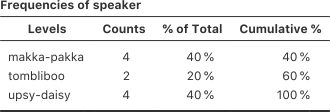
Fig. 32 Frequency table for the speaker variable
The output here tells us on the first line that what we’re looking at is a
tabulation of the speaker variable. In the Levels column it lists all
the different speakers that exist in the data, and in the Counts column it
tells you how many times that speaker appears in the data. In other words, it’s
a frequency table.
In jamovi, the Frequency tables check box will only produce a table for
single variables. For a table of two variables, for example combining
speaker and utterance so that we can see how many times each speaker
said a particular utterance, we need a cross-tabulation or contingency table.
In jamovi you can do this by selecting the Frequencies → Contingency
Tables → Independent Samples analysis, and moving the speaker
variable into the Rows box, and the utterance variable into the
Columns box. You then should have a contingency table like the one shown
in Fig. 33.
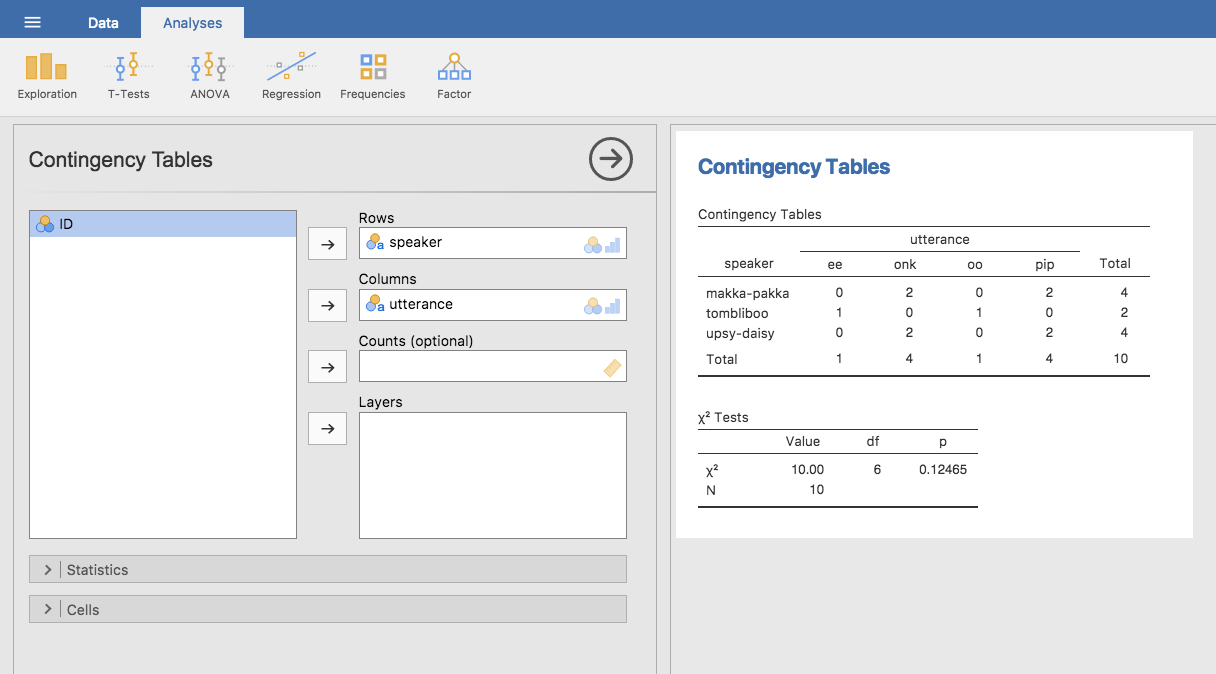
Fig. 33 Contingency table for the speaker and utterance variables
Don’t worry about the χ² Tests table that is produced. We are going to
cover this later on in chapter Categorical data analysis. When interpreting
the contingency table remember that these are counts, so the fact that the
first row and second column of numbers corresponds to a value of 2 indicates
that makka-pakka (row 1) says onk (column 2) twice in this data set.
Adding percentages to a contingency table
The contingency table shown in Fig. 33 shows a table of
raw frequencies. That is, a count of the total number of cases for different
combinations of levels of the specified variables. However, often you want your
data to be organised in terms of percentages as well as counts. You can find
the check boxes for different percentages under the Cells option in the
Contingency Tables window. First, click on the Row check box and the
Contingency Table in the output window will change to the one in
Fig. 34.
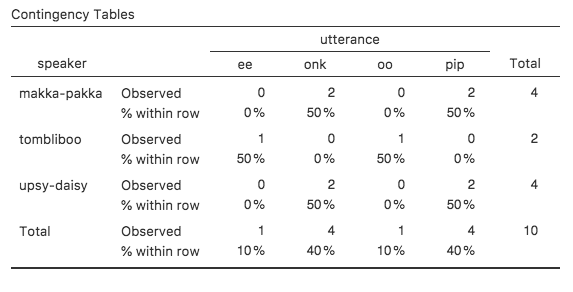
Fig. 34 Contingency table for the speaker and utterance variables, with row
percentages
What we’re looking at here is the percentage of utterances made by each
character. In other words, 50% of makka-pakka’s utterances are pip,
and the other 50% are onk. Let’s contrast this with the table we get when
we calculate column percentages (uncheck Row and check Column in the
Cells options window), see Fig. 35. In this version,
what we’re seeing is the percentage of characters associated with each
utterance. For instance, whenever the utterance ee is made (in this data
set), 100% of the time it’s a Tombliboo saying it.
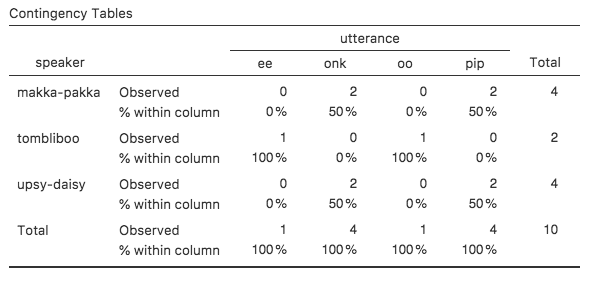
Fig. 35 Contingency table for the speaker and utterance variables, with
column percentages